Search Docs
Search through documentation...

UI Components
See the /infinite example for a live demo with all components in action.
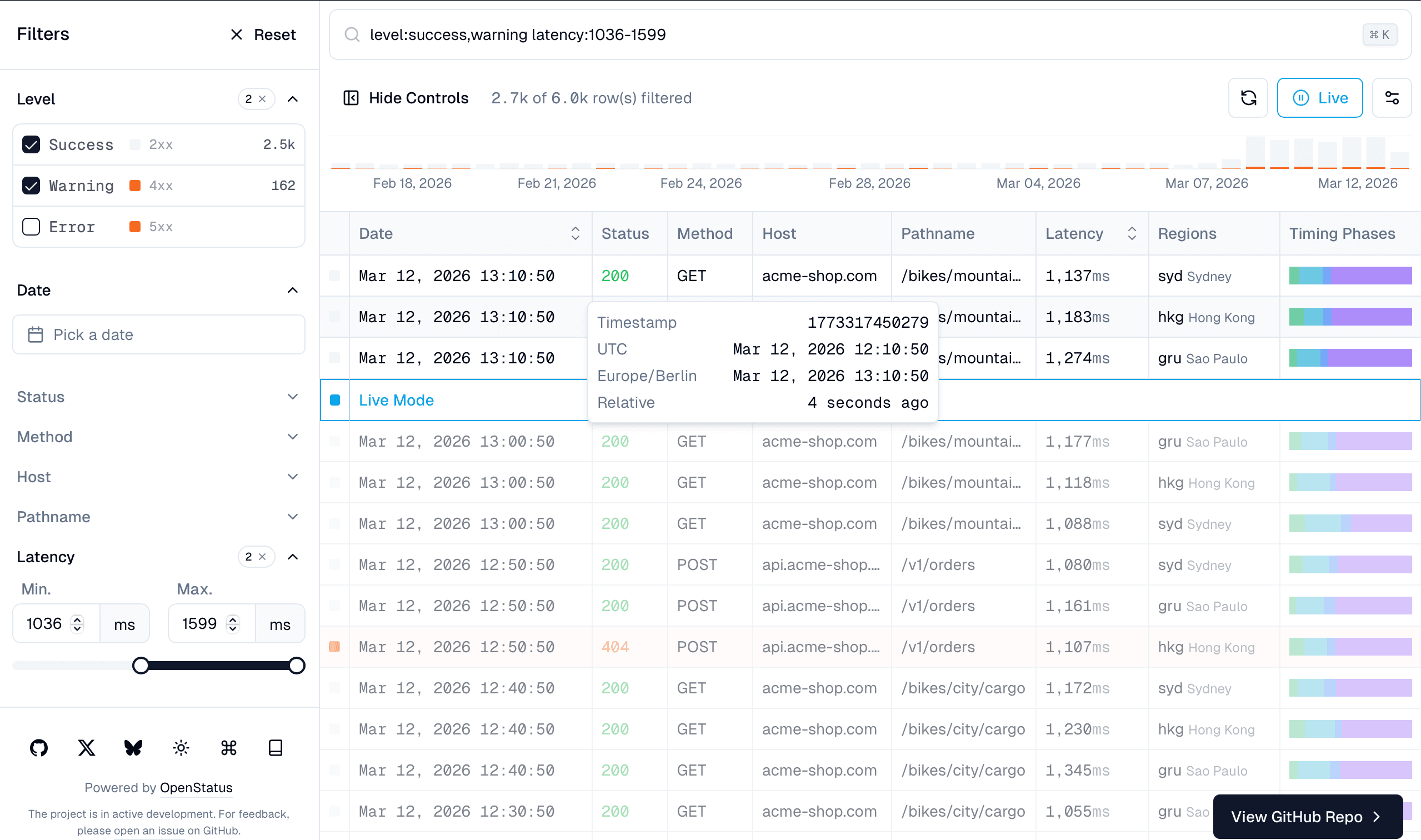
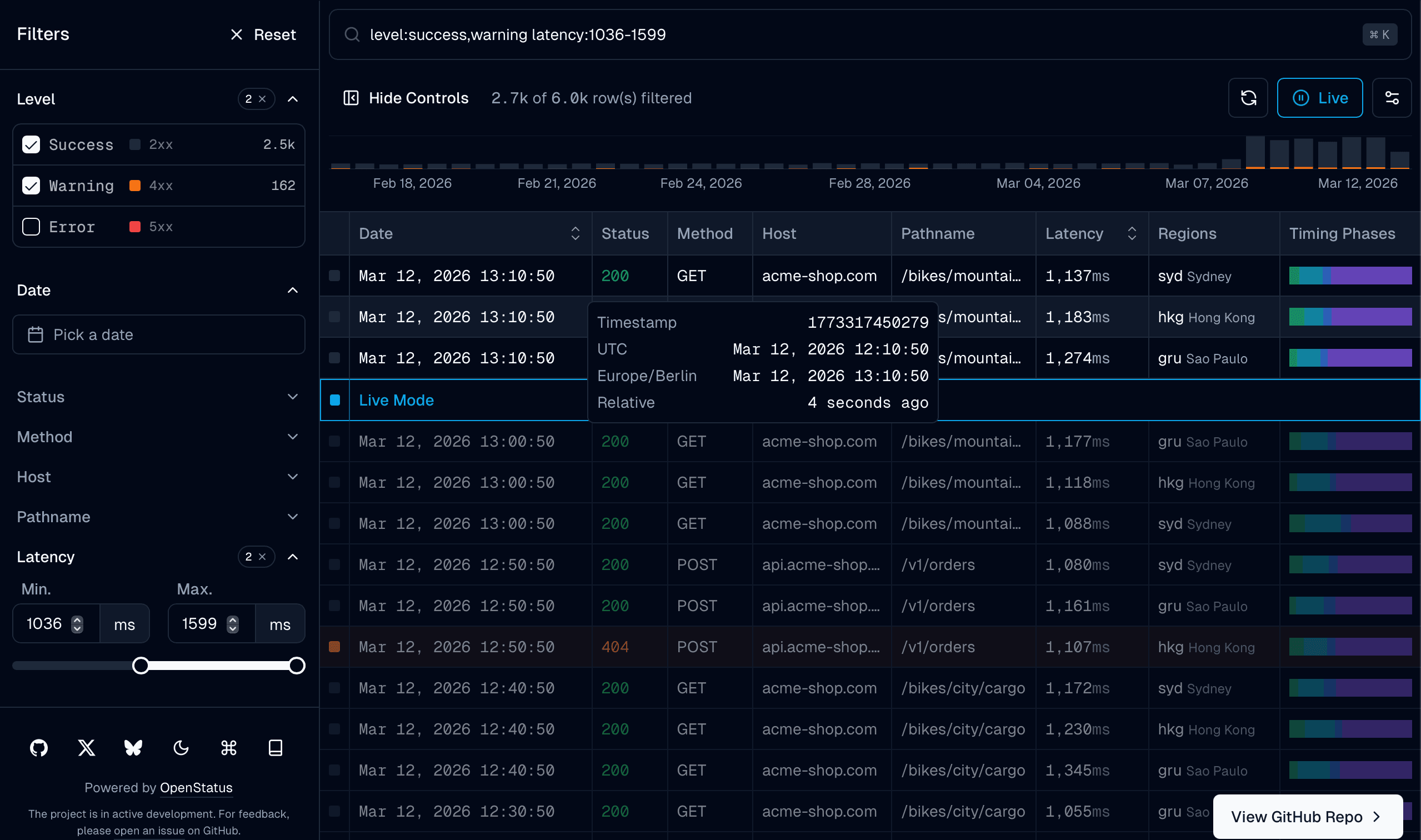
DataTableInfinite
The main infinite scroll table component. Located at src/app/infinite/data-table-infinite.tsx.
<DataTableInfinite
  columns={columns}
  data={flatData}
  totalRows={totalDBRowCount}
  filterRows={filterDBRowCount}
  totalRowsFetched={totalFetched}
  defaultColumnFilters={defaultColumnFilters}
  defaultColumnSorting={sort ? [sort] : undefined}
  defaultColumnVisibility={defaultColumnVisibility}
  filterFields={filterFields}
  sheetFields={sheetFields}
  schema={filterSchema.definition}
  meta={metadata}
  isFetching={isFetching}
  isLoading={isLoading}
  fetchNextPage={fetchNextPage}
  hasNextPage={hasNextPage}
  fetchPreviousPage={fetchPreviousPage}
  refetch={refetch}
  renderSheetTitle={(props) => props.row?.original.pathname}
  getRowId={(row) => row.uuid}
  chartData={chartData}
  chartDataColumnId="date"
/>
DataTableFilterControls
The left sidebar with accordion-based filter controls. Renders the appropriate UI component for each filter type:
- Checkbox — multi-select with search and count display
- Slider — dual min/max range inputs
- Input — text search with debounce
- Timerange — date range picker with preset shortcuts
Toggle with Cmd+B. For responsive layouts, DataTableFilterControlsDrawer provides a mobile-friendly drawer alternative.
DataTableFilterCommand
The command palette for text-based filtering. Opens with Cmd+K.
Supports filter syntax:
- Regular:
host:API - Union:
regions:ams,gru - Range:
latency:100-500 - Quoted:
host:"API Server"(for values with space)
<DataTableFilterCommand schema={filterSchema.definition} tableId="my-table" />Want AI-powered natural language queries in your command palette? Install the
data-table-filter-command-aiblock for an enhanced version that translates free-form text into structured filters. See AI Filters.
DataTableFilterAICommand
A drop-in replacement for DataTableFilterCommand that adds natural language query support. It includes everything from the standard command palette (structured key:value syntax, autocomplete, history) plus:
- AI inference — type a free-form query like "5xx errors in the last hour" and press Enter. The input is sent to your AI endpoint, which streams back structured filters.
- TextShimmer — while the AI is processing, the closed command bar displays the query with a shimmer animation so the user knows it's working.
- Sparkles indicator — an
AI:badge in the footer and a sparkles icon on the infer suggestion hint that the input is being treated as natural language.
The component automatically detects whether the input is structured (host:API) or natural language (show me slow requests) based on whether it matches known field names.
<DataTableFilterAICommand
  schema={filterSchema.definition}
  tableSchema={tableSchema.definition}
  api="/api/ai/filters"
  tableId="my-table"
/>| Prop | Type | Description |
|---|---|---|
schema | SchemaDefinition | BYOS schema for parsing/serializing filter values |
tableSchema | TableSchemaDefinition | Table schema for AI context generation |
api | string | API endpoint that streams AI filter results |
tableId | string | Unique ID for localStorage namespacing (default: "default") |
For full setup including the API route and provider configuration, see AI Filters.
DataTableSheetDetails
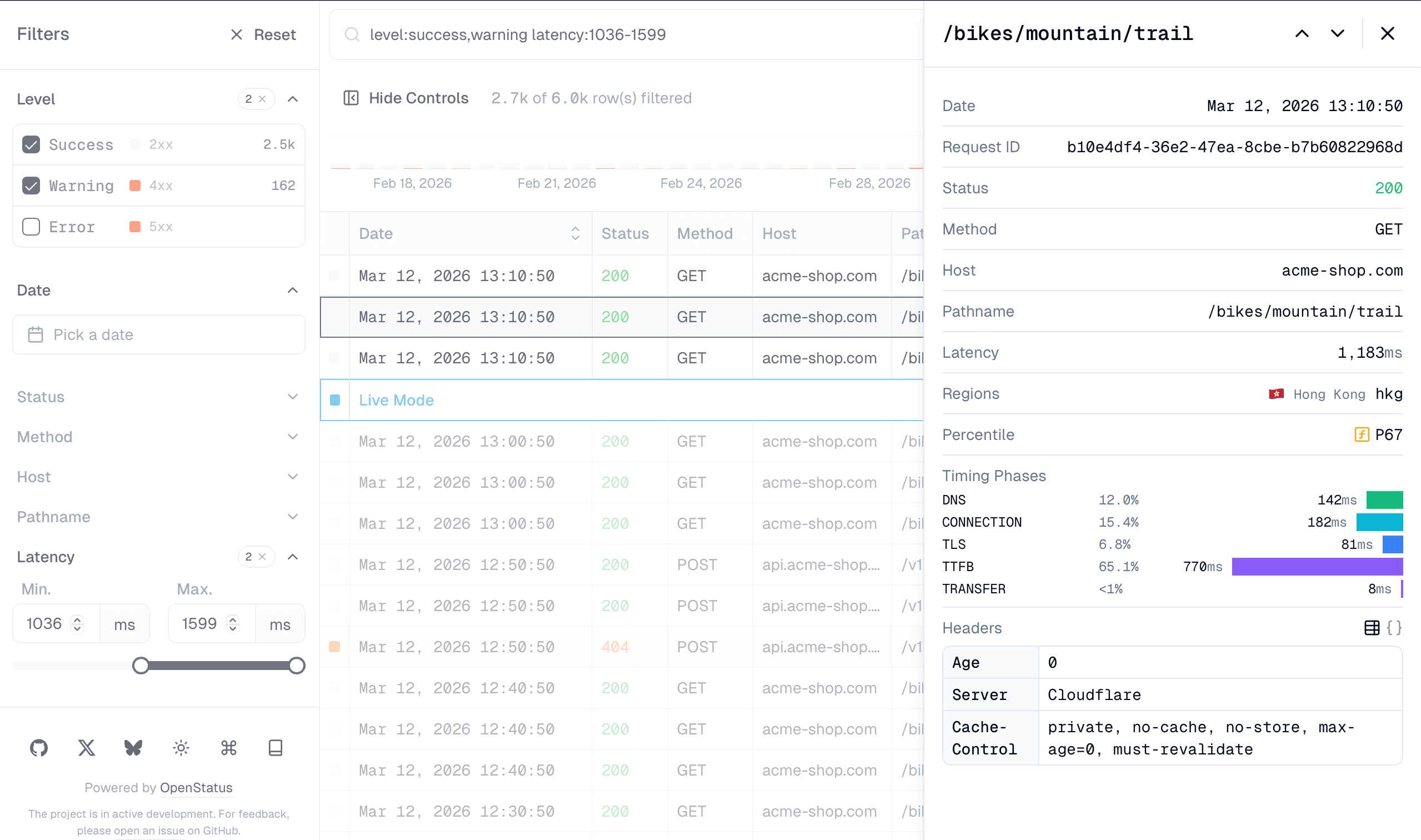
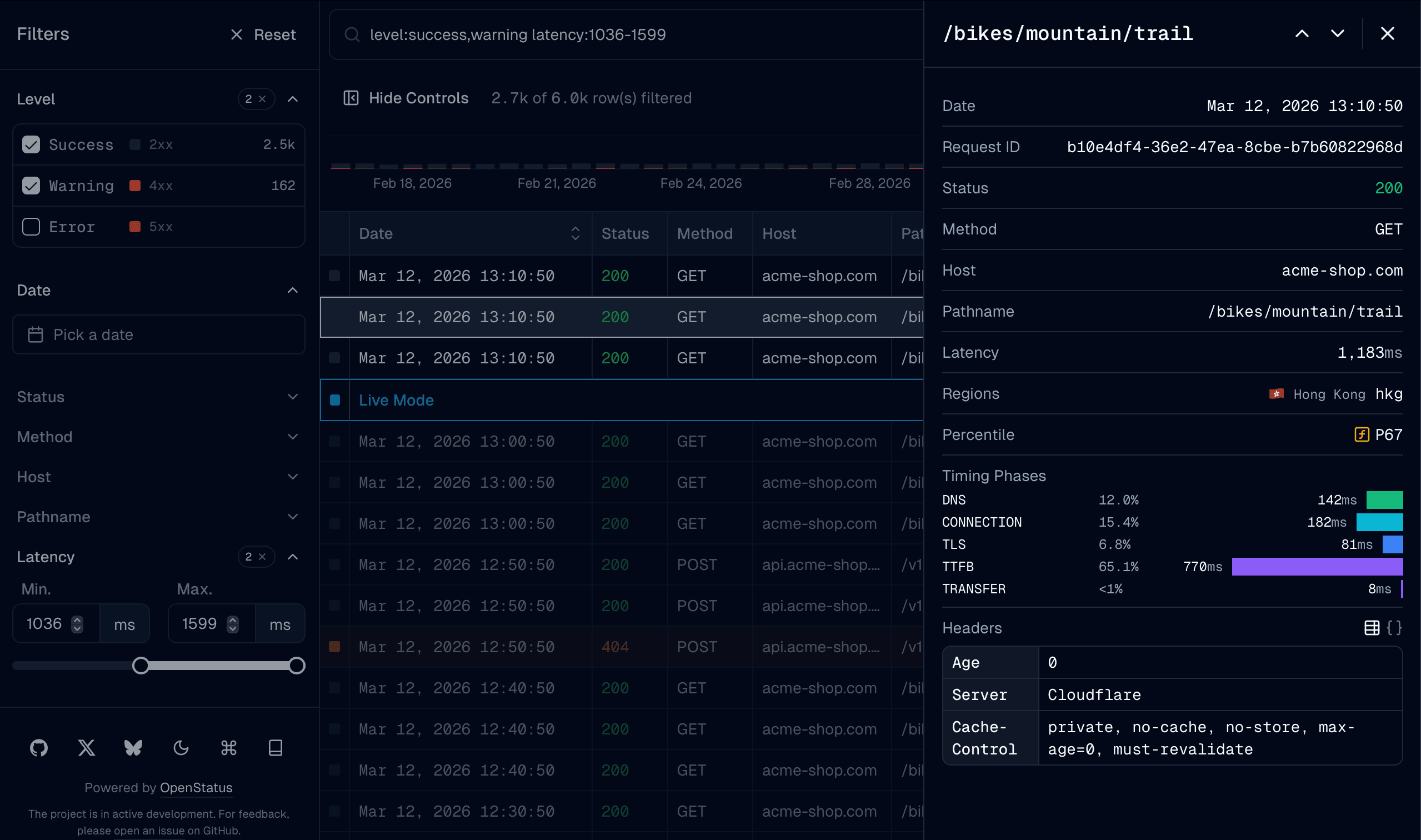
Row detail drawer. Opens when a row is selected. Supports keyboard navigation between rows.
<DataTableSheetDetails
  title={<>{row?.original.pathname}</>}
  titleClassName="font-mono"
>
  <DataTableSheetContent fields={sheetFields} />
</DataTableSheetDetails>
DataTableFloatingBar
A fixed bottom bar that appears when rows are selected, providing a slot for bulk action buttons. Dismisses when no rows are selected.
- Shows
"{n} selected"count with a deselect button Cmd+Shift+Xhotkey to deselect all rows- Uses a render prop that receives the selected
rowsandtableinstance
<DataTableFloatingBar<ColumnSchema>>
  {({ rows, table }) => (
    <Button
      variant="outline"
      size="sm"
      onClick={() => {
        const json = JSON.stringify(
          rows.map((r) => r.original),
          null,
          2,
        );
        navigator.clipboard.writeText(json);
      }}
    >
      Copy {rows.length} rows
    </Button>
  )}
</DataTableFloatingBar>
Pass it via the floatingBarSlot prop on DataTableInfinite:
<DataTableInfinite
  floatingBarSlot={
    <DataTableFloatingBar<ColumnSchema>>
      {({ rows }) => <MyBulkActions rows={rows} />}
    </DataTableFloatingBar>
  }
  // ...other props
/>
Cell Components
Built-in cell renderers (used automatically by generateColumns):
DataTableCellText— plain text with overflow tooltipDataTableCellCode— monospaceDataTableCellNumber— formatted with optional unitDataTableCellTimestamp— relative time with absolute tooltipDataTableCellBadge— colored chipDataTableCellBoolean— checkmark / dashDataTableCellStar— filled yellow star / outlined muted starDataTableCellStatusCode— HTTP status stylingDataTableCellLevelIndicator— severity dot
All support an optional colorMap for value-based coloring.
Filter Functions
Register custom filter functions on your table:
import { inDateRange, arrSome } from "@/lib/table/filterfns";

// In your table config
filterFns: {
  inDateRange, arrSome;
}inDateRange— matches dates within [start, end] rangearrSome— matches if row value is in the filter array
Extending TanStack Table Types
import "@tanstack/react-table";

declare module "@tanstack/react-table" {
  interface TableMeta<TData extends unknown> {
    getRowClassName?: (row: Row<TData>) => string;
  }

  interface ColumnMeta {
    headerClassName?: string;
    cellClassName?: string;
    label?: string;
  }

  interface FilterFns {
    inDateRange?: FilterFn<any>;
    arrSome?: FilterFn<any>;
  }
}